Smartphones have made it easier than ever to shoot photographs, but now
that we take selfies left and right, our devices are getting choked in
terms of storage space. For most people, storing pictures in the cloud
is the best choice, but with so many offerings, how do you choose? Allow
our guide to help.
lunedì 25 maggio 2015

Google Maps Adds Traffic Alerts; Android Wear Also Updated; Pebble CEO Calls For Open Platforms
One of the hottest topics for speculation in healthcare today is the
unrealized potential for mobile health -- defined as technologies that
use mobile devices, apps or telehealth to connect patients and
physicians -- to transform the way healthcare is sought and delivered.
Two-thirds of Americans own a smartphone,
and companies are eager to tap this widespread technology for the
benefit of patients, doctors and hospitals. But expert say it's not yet
obvious how exactly mobile services might be leveraged in the
bureucratic world of healthcare with its highly sensitive privacy
issues.
Apple iPhone 6s And Samsung Galaxy Note 5 Release Dates May Not Be In September
Behemoths like Apple and Samsung have always followed the same release
pattern, especially when it comes to their high-end handsets. This is
apparently the case even with current-generation devices like the Apple
iPhone 6 and the Samsung Galaxy S6. But now, the latest report states
that this trend could change for upcoming devices such as the iPhone 6s,
iPhone 6s Plus and Samsung Galaxy Note 5.
sabato 16 maggio 2015
HP Launch Ubuntu Laptops, PCs in Russia
HP laptops and PCs pre-loaded with Ubuntu are to go on sale in Russia from the middle of May, Canonical has announced.
This Ubuntu App Applies Instagram Style Filters to Your Photos
Looking for an Ubuntu app to apply Instagram style filters to your photos in Ubuntu?Grab your selfie stick and step this way…
Square Enix Announces Renewed Focus On Mobile Games, Claims Consoles Are Too Competitive

Most gaming fans know developer Square Enix for its “Final Fantasy” console games, particularly the ones in the PS One era, where titles like “Final Fantasy 7” flourished and still remain in the hearts and minds of gamers today. Though the company has also found success with modern consoles, thanks to games like “Tomb Raider” and “Hitman,” it seems like the company’s focus has changed.
After looking at their sales charts, Square Enix has announced a renewed focus on mobile games.
mercoledì 13 maggio 2015
Official Ubuntu 15.04 ‘Vivid Vervet’ T-Shirt Now Available to Buy

It’s here — the official Ubuntu 15.04 Vivid Vervet mascot t-shirt is now available to buy from the Canonical store.
The long-time fan-favorite merch item has been a staple part of the Ubuntu release cycle since 2008 and its arrival typically coincides with the final stable release of the OS.
The reverse of each shirt, which is made from 100% cotton, bear the Ubuntu logotype and the name of the release. No matter which direction you’re going in you’ll be promoting the OS to the world!
Ubuntu T-Shirt Size and Price
 The shirt is available in both a male and female fit in a variety of
sizes — from small to XX-Large for men’s, and women’s spanning 8-10
through 14-16.
The shirt is available in both a male and female fit in a variety of
sizes — from small to XX-Large for men’s, and women’s spanning 8-10
through 14-16.
A single Ubuntu 15.04 themed t-shirt costs £11 in the UK, $17.45 in
the US and €13.42 in Europe. This excludes postage/shipping and
packaging costs, which are often prohibitively expensive even for small
items.
Hit the links below to see more information about the item, shipping costs and to order one.
Firefox 38 Arrives With Tab-Based Preferences, Responsive Image Support
Mozilla has announced the release of Firefox 38, the latest version of the popular open-source web-browser.
Canonical will offer the update to Ubuntu 14.04 LTS, 14.10 and 15.04 users via the Software Updater tool. Roll out sometimes takes a day or two, so if you don’t get bugged about it right away just be patient.So, it’s out. But what’s new? Let’s take a look.
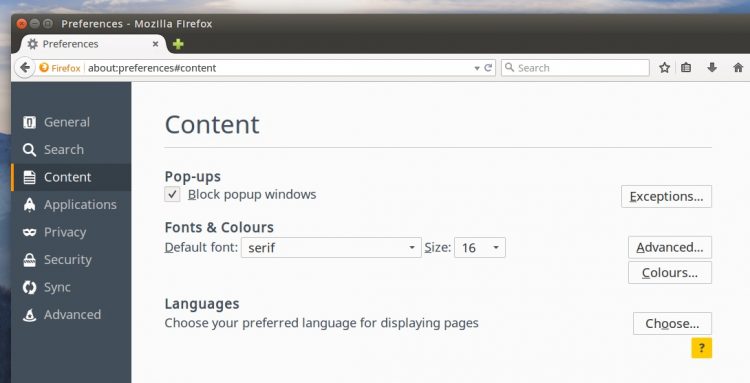
Tab-based Preferences in Firefox 38
The most notable change rocking up in Firefox 38 for Linux users is a new way of handling Firefox preferences.Falling in line with Google Chrome and Opera, Firefox 38 now displays it preferences/settings in-window, in a new tab. That means no more floating palette to lose under your other windows!
Responsive Image Support
Firefox 38 is the first stable version of the browser to ship with
support for both the <picture> and <img srcset> elements for
responsive media loading.
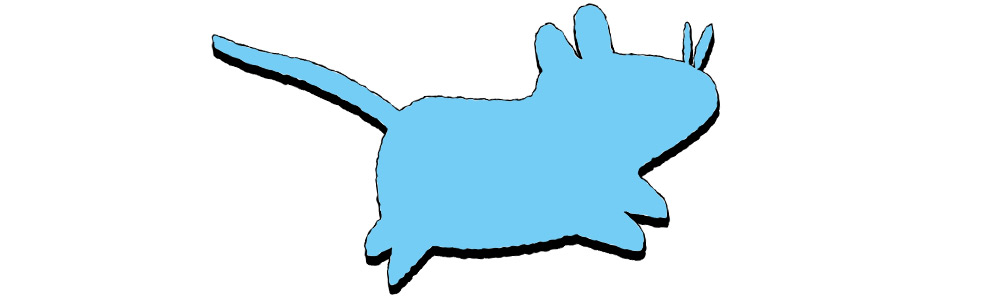
This change allows web developers and content makers to provide multiple versions of an image, each one designed to suit the size and type of device it is will appear on, be it retina laptop or qHD smartphone.
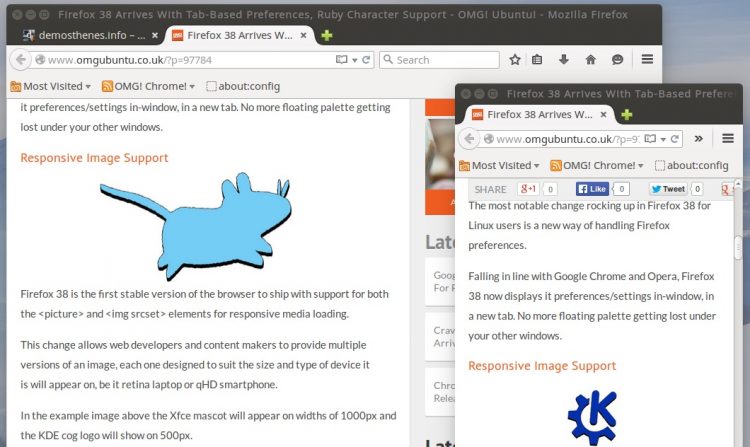
In the example image above the Xfce mascot will appear on widths of 1000px and the KDE cog logo will show on 500px.
(Resizing the Firefox 38 window doesn’t currently affect the image loaded. If you’re reading this Google Chrome, which introduced responsive image support in April last year, you can resize your browser to see the image swap.

This change allows web developers and content makers to provide multiple versions of an image, each one designed to suit the size and type of device it is will appear on, be it retina laptop or qHD smartphone.
In the example image above the Xfce mascot will appear on widths of 1000px and the KDE cog logo will show on 500px.
(Resizing the Firefox 38 window doesn’t currently affect the image loaded. If you’re reading this Google Chrome, which introduced responsive image support in April last year, you can resize your browser to see the image swap.
CDM DRM For Windows Users
For Windows desktop users Firefox 38 now supports the Adobe Content Decryption Module (CDM) to play back HTML5 video encased in DRM.Yes, DRM sucks. And no, Mozilla isn’t wildly enthusiastic about it. But for Firefox users wanting their Netflix fix the browser has little choice but to provide the features they need. On the plus, the CDM (which is downloaded from Adobe automatically on upgrade) is neatly wrapped in a sandbox for added protection.
Why are we writing about that? Well, it’s possible that, at some point, CDM might be added to Linux builds. Worth our making a footnote about it now.
Other changes in Firefox 38
A few other notable changes cropping up in this release:- Improved HiDPI on Linux, with scale now set by DPI (previously defaulted to 1)
- Better page load times through speculative connection warmup
- BroadcastChannel API now working
- Better typography for Japanese and Chinese languages
- WebRTC gains multistream and renegotiation support
- WebSocket support for WebWorkers
- Security fixes
Download Firefox 38
Canonical will roll out Firefox 38 to users on Ubuntu 14.04 LTS, 14.10 and the shiny-new 15.04 in the next 24 hours or so.If you’re super impatient the release can also be downloaded from Mozilla servers.
martedì 12 maggio 2015
Ubuntu 15.10 Daily Build Downloads Now Available
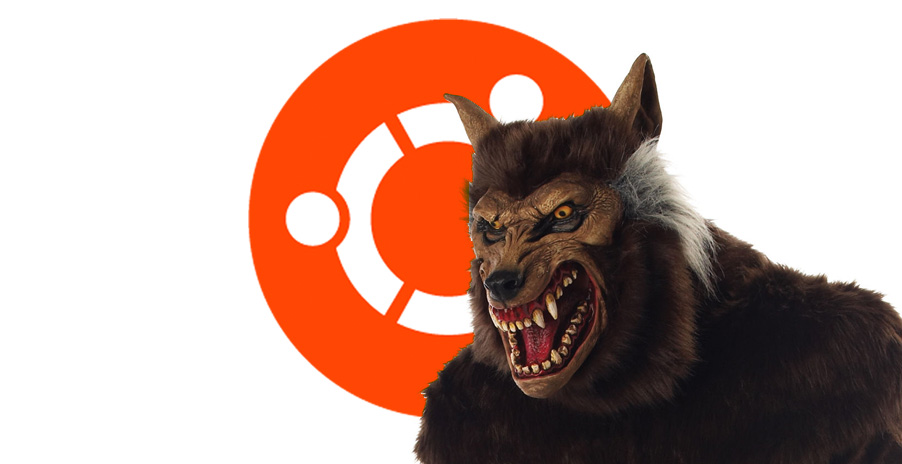
Roaring into life the first Ubuntu 15.10 daily build images are now available to download.
Daily spins for the Wily Werewolf arrive nearly a week after development kicked off and includes ISO images for both regular Ubuntu (using Unity) and community flavors like Ubuntu MATE and Xubuntu.
As the name suggests, these images will be spun up daily for the next six months. At various intervals during this time a “snapshot” of one of these images is taken and released as an alpha, beta or release candidate milestone.
The final Ubuntu 15.10 release date is currently pencilled in for October 30, 2015, so the ‘Wily Werewolf’ should transform into a strong and stable beast just in time for the spooky festival of Samhain/Hallowe’en.
What are Ubuntu Daily Builds?
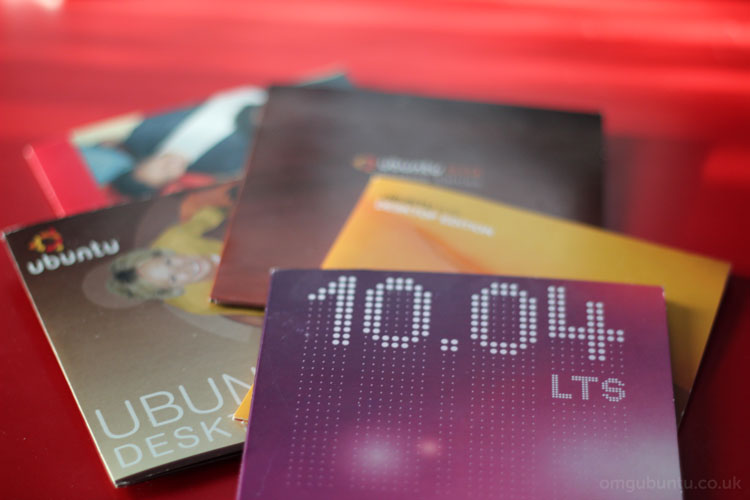
Daily builds of Ubuntu are built from source each day using the latest code, fixes, updates, patches and packages.
The ‘freshness’ is important as it allows the very
latest changes to be continually and iteratively tested, either by hand
(using Apport) or using separate, automated testing tools.
Lowering the barrier to testing (generally) results
in better testing and quality assurance. Testers don’t need compile
anything for themselves or wait months for a ‘milestone’ release to go
live to get involved.
 The frequency of Ubuntu daily build images also
speeds up the feedback cycle — which also improves the quality of the
code going in to each successive build. Bugs and issues are found sooner
and against the latest code (it’s easier to narrow down the cause).
The frequency of Ubuntu daily build images also
speeds up the feedback cycle — which also improves the quality of the
code going in to each successive build. Bugs and issues are found sooner
and against the latest code (it’s easier to narrow down the cause).Download Ubuntu 15.10 Daily Build
Use Ubuntu daily builds are provided for testing purposes only and should not be installed by anyone needing a stable desktop experience. That warning that goes doubly so for daily builds produced this early in the development cycle.For those of you live on the bleeding edge and/or want to get involved in helping to test you can download an Ubuntu 15.10 daily live image to try in a virtual machine (or install one to a separate partition/device).
Hit the button below to navigate over to the Ubuntu image server where you will be able to download a daily build of Ubuntu as an .iso file.
Xubuntu Core: Lightweight Ubuntu Distro Goes on a Diet
Xubuntu has introduced a new slimmed down version of the main distro called Xubuntu Core.
Yes, one of the lightest of Ubuntu flavours has gone on a diet. (And no, it’s not related to Ubuntu Snappy Core.)
Xubuntu Core ships, surprise, the core Xfce desktop and selected extras to make it ‘look and feel’ like Xubuntu.
The rest of the stuff one might usually find pre-installed is cut out. No bloat, no frills, and no extraneous apps like media players, photo editors and even a web browser! You do a get the command line, so anything you need is but a tip-tap away.
“Xubuntu core will be a slimmed down version of Xubuntu that doesn’t come with all the additional features of a full and modern desktop,” the team say in the official announcement.
Official release ISOs of Xubuntu Core are planned for the 15.10 cycle.
But it’s not perfect for all use cases.
Xubuntu Core images are around ~600MB. This makes it faster to download and able to fit on a regular CD.
These considerations could make Xubuntu Core an ideal choice for those with limited network connectivity, who use an older machine or want fair more control over their desktop experience.
Interested? Well, good news. Xubuntu Core is already available to install as of the most recent release, Xubuntu 15.04, by using the Ubuntu minimal install images (a tiny 33MB!)
For Xubuntu Core, this means booting the mini.iso and selecting the ‘Xubuntu Minimal Installation’ option listed in the text prompt.
If the Ubuntu Mini ISO base system is already installed (using the ‘cli’ command) then Xubuntu Core can be installed by running the following command in full:
Yes, one of the lightest of Ubuntu flavours has gone on a diet. (And no, it’s not related to Ubuntu Snappy Core.)
Xubuntu Core ships, surprise, the core Xfce desktop and selected extras to make it ‘look and feel’ like Xubuntu.
The rest of the stuff one might usually find pre-installed is cut out. No bloat, no frills, and no extraneous apps like media players, photo editors and even a web browser! You do a get the command line, so anything you need is but a tip-tap away.
“Xubuntu core will be a slimmed down version of Xubuntu that doesn’t come with all the additional features of a full and modern desktop,” the team say in the official announcement.
Official release ISOs of Xubuntu Core are planned for the 15.10 cycle.
Lightweight Linux Distro Goes on a Diet
The full version of Xubuntu 15.04 is distributed as a ~950MB ISO image. Big, large and full of all the stuff most people want and need from Xubuntu.But it’s not perfect for all use cases.
Xubuntu Core images are around ~600MB. This makes it faster to download and able to fit on a regular CD.
These considerations could make Xubuntu Core an ideal choice for those with limited network connectivity, who use an older machine or want fair more control over their desktop experience.
Interested? Well, good news. Xubuntu Core is already available to install as of the most recent release, Xubuntu 15.04, by using the Ubuntu minimal install images (a tiny 33MB!)
How to Install Xubuntu Core 15.04
The recommended way to install Xubuntu Core 15.04 is to use the Ubuntu Minimal ISO. This is a network installer image that will downloads the packages it needs to install a desktop (instead of providing those packages on the disc).For Xubuntu Core, this means booting the mini.iso and selecting the ‘Xubuntu Minimal Installation’ option listed in the text prompt.
If the Ubuntu Mini ISO base system is already installed (using the ‘cli’ command) then Xubuntu Core can be installed by running the following command in full:
sudo apt-get install xubuntu-core^Community ISOs are also available. These have been put to together by an Xubuntu developer but are not “official” releases.
giovedì 7 maggio 2015
Microsoft's Continuum Looks Suspiciously like Canonical's Ubuntu for Android
Microsoft's Continuum Looks Suspiciously like Canonical's Ubuntu for Android
It would be easy to point fingers and say that Microsoft copied Canonical's idea, but it's not like there was already a working version of this concept. Canonical just showed us that it can be done, and it was one of the selling points of Ubuntu Edge, the super-phone that never happened. Microsoft just went on with their timetable and just did it.
Remember a couple years back when Canonical
was showing us how you could
transform your phone into a full-fledged
Ubuntu PC?
That was a more of a concept, but it's 2015
and that hasn't been made possible yet,
at least not by Canonical.
Microsoft just demoed the same thing
with its Windows phone.
was showing us how you could
transform your phone into a full-fledged
Ubuntu PC?
That was a more of a concept, but it's 2015
and that hasn't been made possible yet,
at least not by Canonical.
Microsoft just demoed the same thing
with its Windows phone.
It would be easy to point fingers and say that Microsoft copied Canonical's idea, but it's not like there was already a working version of this concept. Canonical just showed us that it can be done, and it was one of the selling points of Ubuntu Edge, the super-phone that never happened. Microsoft just went on with their timetable and just did it.
Mark Shuttleworth, the founder of Canonical, pointed out a while back that we're carrying very powerful small computers in our back pocket, and we hardly use them. Canonical's idea was to connect the phone to a monitor, hook up a keyboard and a mouse, and your PC is ready for use. At first, it was presented under the name of Ubuntu for Android, but it later became a feature for the Ubuntu Touch (which is still under development).
Microsoft's Continuum project is weirdly similar with Canonical's
Perhaps Canonical should have patented this idea or the concept of transforming your phone into a PC, although it would have been one of those vague patents that everyone just hates. In any case, Microsoft managed to produce a working prototype, and they estimate that it will be feature-ready by the time Windows 10 is released this summer.
In any case, when all is said and done, Microsoft seems to have beaten Canonical to the punch, at least for this particular feature. On the other hand, Canonical is almost ready to achieve OS convergence between the phone and the PC. They will soon have a single operating system running on both, with the same underlying code, which is not something that Microsoft has mastered, at least not yet.
venerdì 1 maggio 2015
Tomahawk 0.8.4 Released, Plugin for Tidal On The Way
Tomahawk 0.8.4 Released, Plugin for Tidal On The Way
A new update to the meta-streaming desktopmusic player Tomahawk has washed ashore, with a bunch of bug fixes firmly in tow.
News of the update, the fourth since the first 0.8.x series release last year, also reveals that a new plugin is in the works for musician-owned streaming service TIDAL.
Not that anyone already ponying up the $19.99 subscription fee will be awash in hi-def audio just yet. Tomahawk devs say the TIDAL plugin is not yet ready for prime-time use, and is not included in the compiled builds of the player for desktop users.
It is being made available to those compiling the music player from source, though. Let us know how well it works if you’re a Tidal subscriber and a source assembling ninja.
Bug Fixes in Tomahawk 0.8.4
The bulk of Tomahawk 0.8.4 is made up of bug fixes. Always welcome, these help give a boost to performance, improve memory usage and speed up the browsing of collections.
“Mostly it fixes some annoying bugs and continues to improve performance,” project developer ‘mueslix‘ notes.
A crash in the network code has been fixed, as have inconsistencies with the repeat one/all icons.
Drag and drop of files in the sidebar now works as you might expect, and alternative content sources continue to be sought when a perfect match for the track you want isn’t found.
Among the ‘hawk’s minor feature tweaks is a reordering of cloud collections in the sidebar and what is described as ‘more lenient’ handling of JSPF and M3U playlists.
Windows and OS X specific fixes also feature. For users of the latter this will be the final release to be based on Qt4.
So what’s on the road-map for Tomahawk’s next major release? Compilation support and collection management will see some major improvements. You will finally be able to pick which release or version of an album you want to browse and play.
Tomahawk 0.9 Will Switch to libVLC
Tomahawk developers hope these fixes will tide fans over until the next major release, version 0.9, tentatively set for release next month.
And it should be an update worth singing about.
Tomahawk 0.9 will feature a change to it audio-engine department. The app, like a lot of Qt-based players, currently relies on Phonon. Its next release will switch to libvlc. In doing so the app will offer better handling of content across multiple platforms and support even more audio and stream formats.
Download / Install Tomahawk 0.8.4
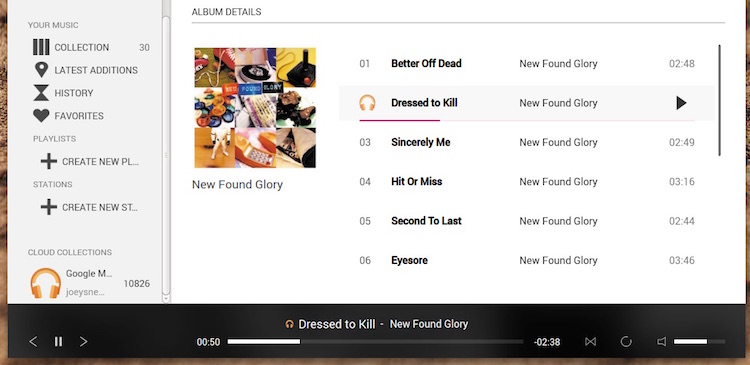
Google Music integration in Tomahawk
Tomahawk 0.8.4 is available to install in Ubuntu 14.04 LTS and up using the official Tomahawk PPA — great news for a lazy dude like me.
Add the PPA to your Software Sources, update and then install the release from the Ubuntu Software Center.
Or, for the really easy way, open a new Terminal window and punch the following letters on your keyboard in sequence (pulling any broken keys out of your fingers with pliers if needed):
sudo add-apt-repository ppa:tomahawk/ppa
sudo apt-get update && sudo apt-get install tomahawk
Arch Linux users can install version 0.8.3 from the AUR.
Standalone installers for other platforms, source downloads and — shock — more information can be had at the official project website, which we’ve linked to below.
11 Things To Do After Installing Ubuntu 15.04
11 Things To Do After Installing Ubuntu 15.04

Ubuntu 15.04 ‘Vivid Vervet’ has been released. While you wait for your freshly minted ISO download to complete, join us in our bi-annual rundown of things to do after installing Ubuntu.
Whether you’re doing a clean install or upgrading from an earlier version, our checklist of post-install tasks should help nudge forgetful fans and hold the hands of new users alike.
Ready? Let’s roll.
1. See What’s New Ubuntu 15.04 Vivid Vervet
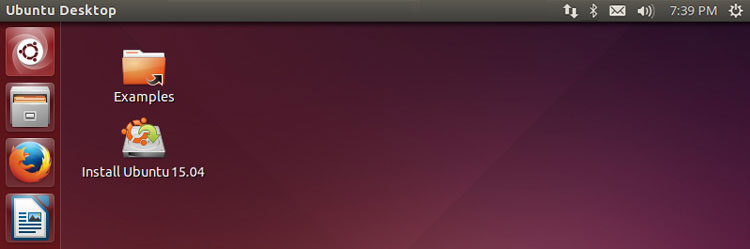
Although Ubuntu 15.04 lacks big user-facing changes that doesn’t mean it’s exactly the same as early versions.
Whether you’re new to Ubuntu or not it helps to know about its key changes and options. For example, application menus can now be set to always show, not just appear when you mouse over them.
Check out our rundown of Ubuntu 15.04 for the full skinny on what’s new.
2. Check for Any Last Pending Updates
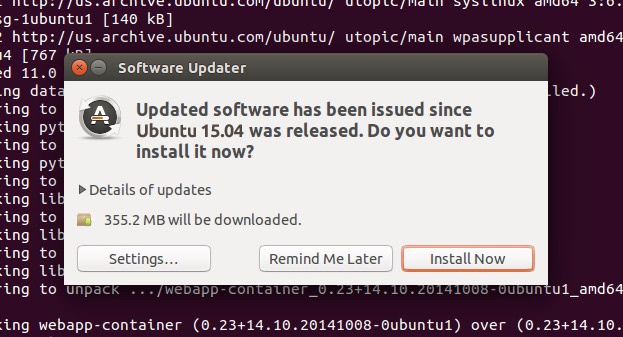
Check for any last minute updates
Having got yourself acquainted with the latest changes your next step should be… to fire up the Software Updater tool and check for any last minutes updates.
Yes, I know: you might have only just installed it — but bugs don’t adhere to the same deadlines as developers.
And not everyone who installs Ubuntu 15.04 will do so on release day.
3. Add Some Personality
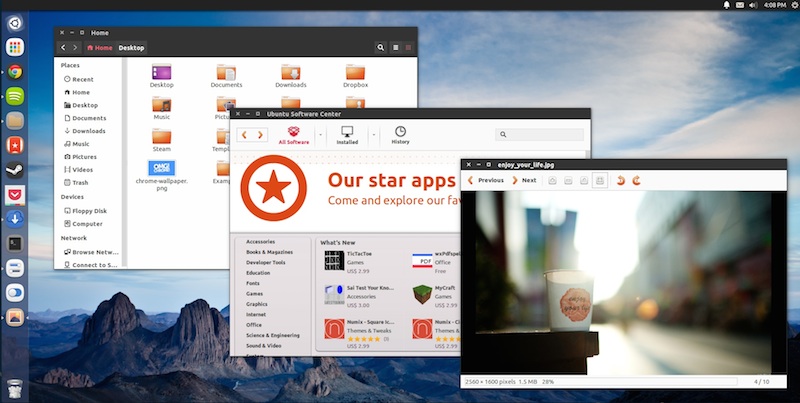
Make Ubuntu Beautiful
The look and feel of the Ubuntu desktop hasn’t changed for several years. It still uses the dark ‘Ambiance’ theme and glossy Humanity icon set.
While both of these are perfectly palatable — if it ain’t broke, and all that — the overall look is showing its age when viewed against other operating systems, both desktop and mobile.
But the beauty of Linux is partly in how beautiful it can be made to look.
From the ‘Appearance‘ section of the System Settings app you can:
- Change the desktop wallpaper
- Change the desktop theme
- Adjust the size of the Unity launcher
Even more options layout and customization can be accessed from the Unity Tweak Tool available from the Ubuntu Software Center;
4. Install Graphics Card Drivers
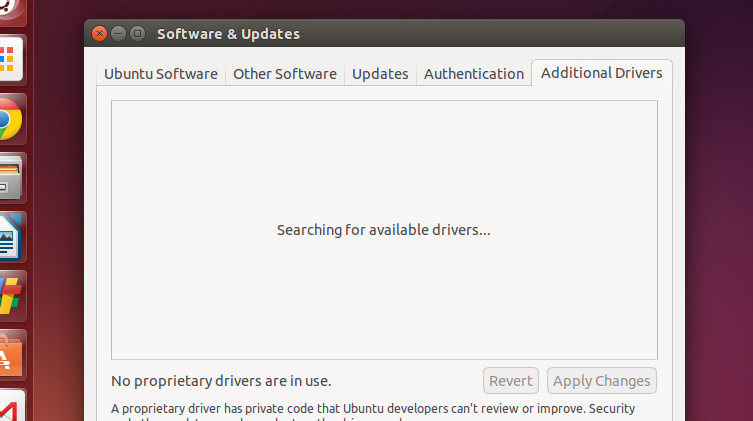
Enable graphics drivers
If you plan to use your newly updated version of Ubuntu to play the latest Steam games, watch high-definition video or work with apps like Blender, you’ll want to, if not need to, enable the latest proprietary Linux graphics drivers available for your hardware.
Ubuntu makes this easy:
- Open up the ‘Software & Updates’ tool from the Unity Dash
- Click the ‘Additional Drivers’ tab
- Follow any on-screen prompts to check for, install and apply any changes
That’s it. You’re done!
5. Enable Media Codecs
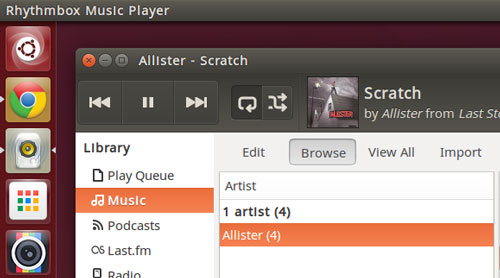
Listen to music in Ubuntu
Just as vital for a good desktop experience are the codecs needed to play music and video files in Ubuntu. Patent issues mean Ubuntu is not able to include these ‘out of the box’.
Your Taylor Swift collection will only be out of reach for a while. You can quickly enable everything you need to listen to your MP3 library or watch your catalog of MP4 movies by installing the various codecs in one fell swoop.
Ubuntu makes it easy by offering the chance to install everything you need during installation. But if you overlooked that option you can install the Ubuntu Restricted Extras package from the Ubuntu Software Center:
6. Adjust Your Privacy Settings
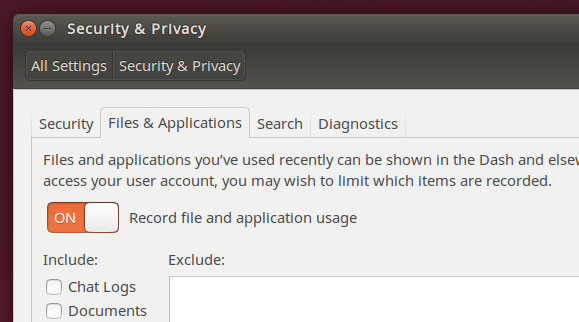
Hide stuff
The Unity Dash is great for finding files, apps and snippets of online data in a pinch. Just open the Dash, type your query — be it ‘Firefox’ or ‘Weather in Townsville’ — and Ubuntu will try to return results that match.
You may not want to see weather results, wikipedia links and color swatches every time you search, and you may not want to see thumbnail previews of certain folders and files showing up either!
Whatever your preference head to the Privacy & Security section of System Settings to:
- Disable all online features in the Unity Dash
- Choose which folders and files appear in the Dash
- Turn off automatic error reporting
7. Choose Where App Menus Show
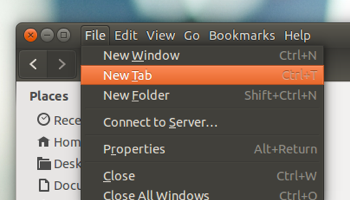
Do You Prefer App Menus To Be In-App?
The behaviour and location of applications menus in Ubuntu can be confusing for new and longtime users alike, with the traditional ‘Files’, ‘Edit’, ‘Help’, etc menus being located at the top of the screen rather than paired with the app they below to.
What it saves in screen space it adds in confusion. An option inside the Appearance settings pane allows you to specify where app menus show. If you’d rather have them inside the application itself, you can:
- Go to ‘System Settings > Appearance’
- Select the ‘Behavior’ tab
- Find the section headed: ‘Show the Menus for a Window’
- Check (click) the circle next to ‘In the window’s title bar’
The change is applied immediately.
8. Set App Menus to ‘Always Show’
One of Ubuntu 15.04’s headline features — setting App Menus to ‘Always Show’ — is, oddly, not immediately accessible to users.
To take advantage of it you need to use the Dconf-editor tool, a complex utility and something not recommended for novices to use. To avoid screwing things up you can paste the following command into the Terminal application Ubuntu includes by default.
gsettings set com.canonical.Unity always-show-menus true
To undo the change and set app menus to hide until mouse over (the default behaviour) run this command:
gsettings set com.canonical.Unity always-show-menus false
Simple enough, right?
9. Spread the Word And Get Involved

This post-install step is self explanatory and, yes, a little cheesy.
If you try Ubuntu and like it, be it out of ideology, technical merit or another reason, be sure to tell others and spread the word.
How? Maybe try one of the following:
- Burn a LiveDVD/USB for someone you know to try
- Share what you like about it on social media or blogs
- Contribute to development by reporting a bug you encounter
- Wear an Ubuntu t-shirt or put stickers on your device
- Join an Ubuntu LoCo team or Linux User Group
Plan on doing this? Let us know how you get on in the comments.
10. Get More Apps from the Ubuntu Software Center
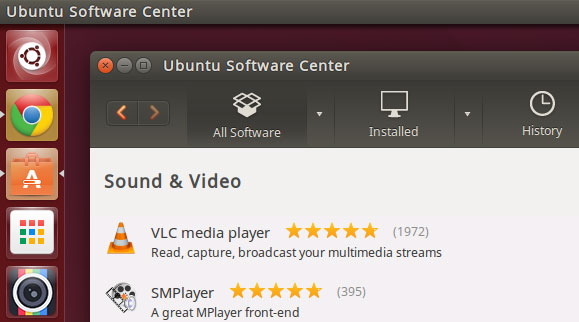
Find software that suits you
Ubuntu ships with all the basic apps you’ll need to do most tasks.
You get a web browser (Mozilla Firefox), e-mail client (Thunderbird), music player (Rhythmbox), office suite (LibreOffice) and instant messenger (Empathy).
But don’t limit yourself. There are plenty more apps available to try inside the Ubuntu Software Center.
Popular choices include:
- VLC — Versatile media player
- Steam — Games distribution platform
- Geary — Lightweight desktop e-mail client for Linux
- GIMP — Advanced image editor similar to Photoshop
- Shutter — Screenshot and image annotator tool
And since most apps available from the Software Center are free you don’t need to be scared about trying things out.
11. Fill In The Gaps With Essential Extras
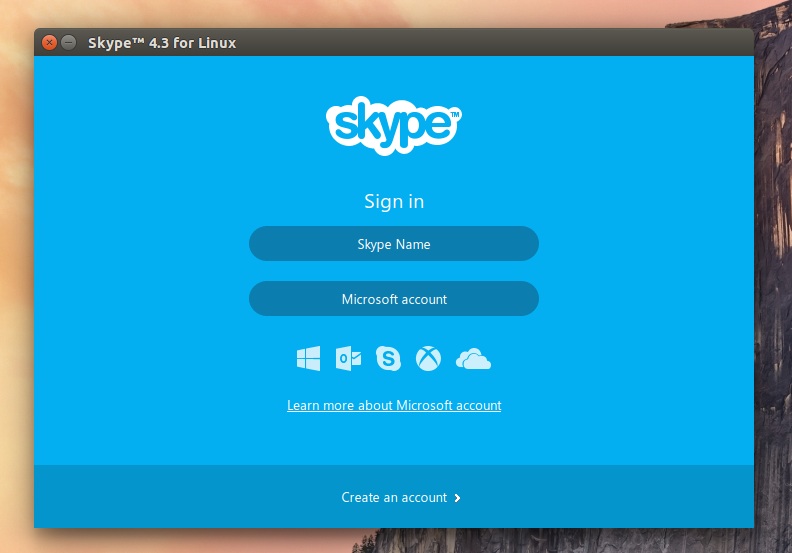
Love it or hate it chances are you use it
Well stocked though the shelves of the Ubuntu Software Center are, you may find a few glaring gaps in what it carries.
Many well-known apps like Skype, Google Chrome (whichsupports Netflix playback on Linux) and popular cloud storage service Dropbox have to be installed manually.
This isn’t difficult: just download the Ubuntu packages available from the official website of each app you need and follow the installation instructions included (if needed).
See our list of ‘11 Useful Utilities To Supercharge Ubuntu With’ for even more handy app ideas.
Closing Thoughts…
The items above are not the only ones applicable to the post-upgrade situation, but they are the ones most users will need to do. Don’t feel bound by them; read through and follow the ones that chime with you, and feel free to ignore those that don’t.
This list is also only aimed at people who want to use Ubuntu, not something different. As such we do not list (the numerable) ways of making it potentially unstable by installing bleeding edge buggy software or adding untrusted PPAs.
Finally, if the Unity desktop isn’t your thing, don’t worry! Be logical and save yourself time by installing an official flavour or offshoot like Linux Mint.
KDE Plasma 5.3 Released, Here’s How To Upgrade in Kubuntu 15.04
KDE Plasma 5.3 Released, Here’s How To Upgrade in Kubuntu 15.04
KDE has announced the stable release of Plasma 5.3, which comes charged with a slate of new power management features.
Having impressed and excited with an earlier beta release in April, the latest update to the new stable update to the Plasma 5 desktop environments is now considered stable and ready for download.
Plasma 5.3 continues to refine and finesse the new-look KDE desktop. It sees plenty of feature additions for desktop users to enjoy and almost 400 bug fixes packed in it should also improvements the performance and overall stability, too.
What’s New in Plasma 5.3
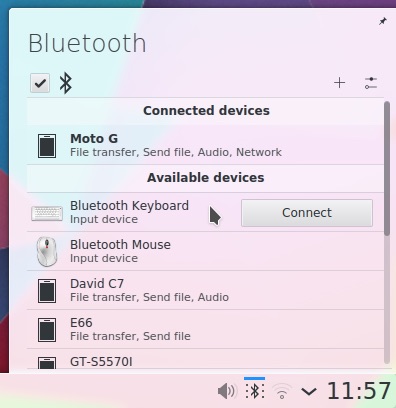
Better Bluetooth Management in Plasma 5.3
While we touched on the majority of the new features in Plasma 5.3 in an earlier article many are worth reiterating.
Enhanced power management features and configuration options, including a new battery applet, energy usage monitor and animated changes in screen brightness, will help KDE last longer on portable devices.
Closing a laptop when an external monitor is connected no longer triggers ‘suspend’. This new behaviour is called ‘cinema mode‘ and comes enabled by default, but can be disabled using an option in power management settings.
Bluetooth functionality is improved*, with a brand new panel applet making connecting and configuring paired bluetooth devices like smartphones, keyboards and speakers easier than ever.
Similarly, trackpad configuration in KDE is easier with Plasma 5.3 thanks to a new set-up and settings module.
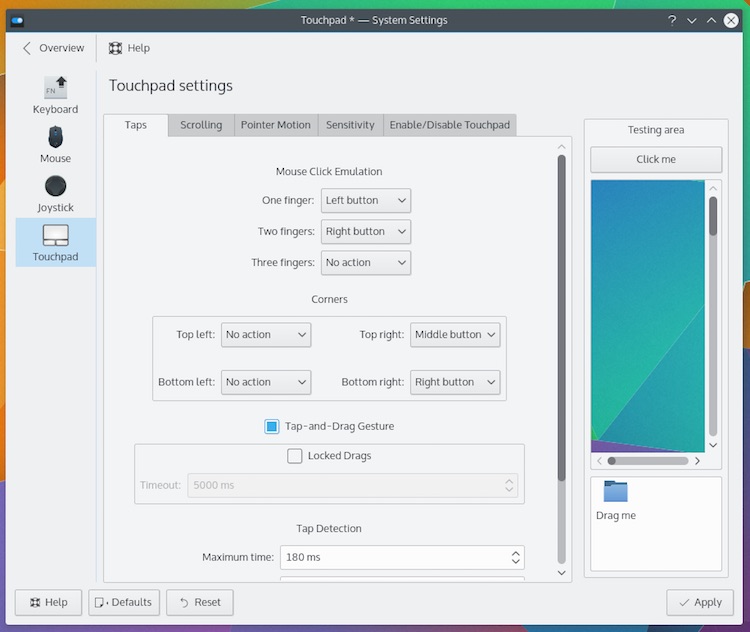
Trackpad, Touchpad. Tomato, Tomayto.
For Plasma widget fans there is a new Press and Hold gesture. When enabled this hides the settings handle that appears when on mouseover. Instead making it only appear when long-clicking on widget.
On the topic of widget-y things, several old Plasmoid favourites are reintroduced with this release, including a useful system monitor, handy hard-drive stats and a comic reader.
Learning More & Trying It Out
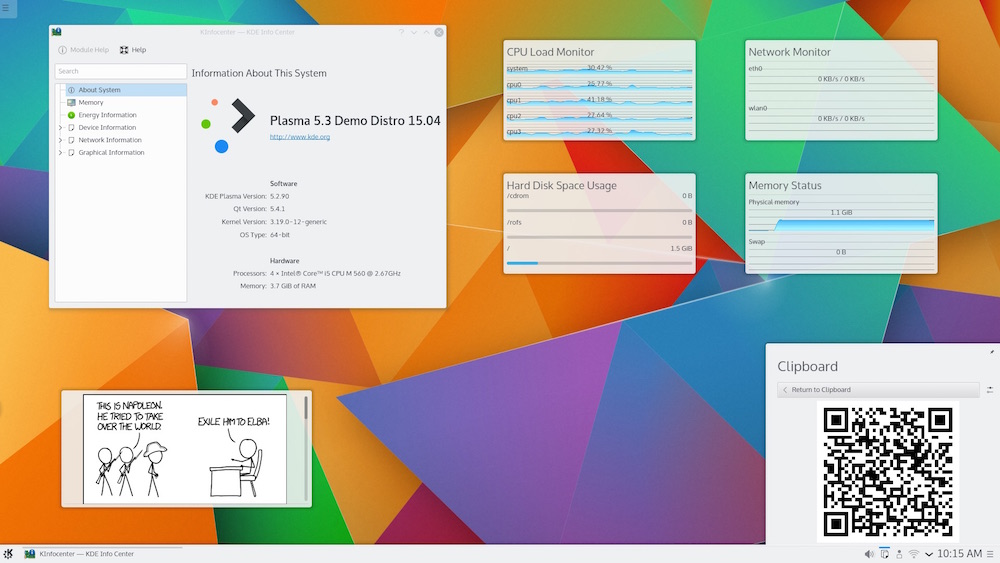
A full list of everything — and I mean everything — that is new and improved in Plasma 5.3 is listed in the official change log.
Live images that let you try Plasma 5.3 on a Kubuntu base without affecting your own system are available from the KDE community:
If you need super stable system you can use these live images to try the features but stick with the version of KDE that comes with your distribution on your main computer.
However, if you’re happy to experiment — read: can handle any package conflicts or system issues resulting from attempting to upgrade your desktop environment — you can.
Install Plasma 5.3 in Kubuntu 15.04

To install Plasma 5.3 in Kubuntu 15.04 you need to add the KDE Backports PPA, run the Software Updater tool and install any available updates.
The Kubuntu backports PPA may/will also upgrade other parts of the KDE Platform other than Plasma that are installed on your system including KDE applications, frameworks and Kubuntu specific configuration files.
Using the command line is by far the fastest way to upgrade to Plasma 5.3 in Kubuntu:
sudo add-apt-repository ppa:kubuntu-ppa/backports
sudo apt-get update && sudo apt-get dist-upgrade
After the upgrade process has completed, and assuming everything went well, you should reboot your computer.
If you’re using an alternative desktop environment, like LXDE, Unity or GNOME, you will need to install the Kubuntu desktop package (you’ll find it in the Ubuntu Software Centre) after running both of the commands above.
To downgrade to the stock version of Plasma in 15.04 you can use the PPA-Purge tool:
sudo apt-get install ppa-purge
sudo ppa-purge ppa:kubuntu-ppa/backports
Let us know how your upgrade/testing goes in the comments below and don’t forget to mention the features you hope to see added to the Plasma 5 desktop next.
Iscriviti a:
Commenti (Atom)